
Windows app from Obla LLC · version 1.0.0

Uninstall programs. Clean up leftovers. Keep apps up to date.

SysRefiner uninstalls Windows programs and Store apps, cleans up what they leave behind, keeps your apps up to date, and protects the parts of Windows you shouldn't remove, with plain-language warnings and a full record of everything it did.

Pre-release, build 20 Nov 2026. Working and in daily use on the test PC. Not yet publicly distributed. Free, with no ads and no tracking.

Download

64-bit setup

There is no installer yet. Code signing is in validation. Version 1.0.0 today is a portable program, SysRefiner.exe (about 245 KB), for testing only. This button does not download a file.

File name
SysRefiner-Setup-1.0.0-x64.exe
Size
Not published yet
SHA-256
Not published yet
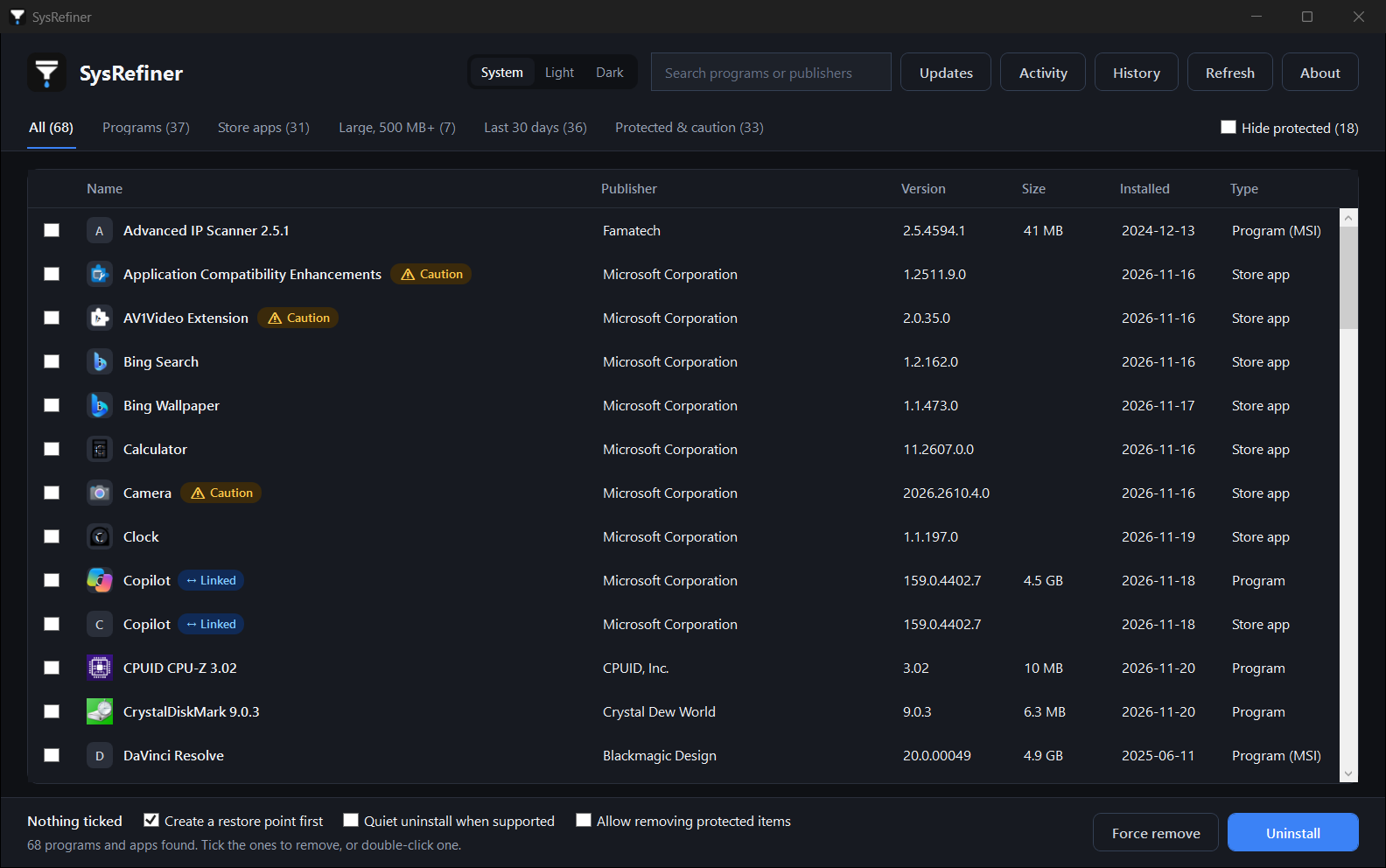
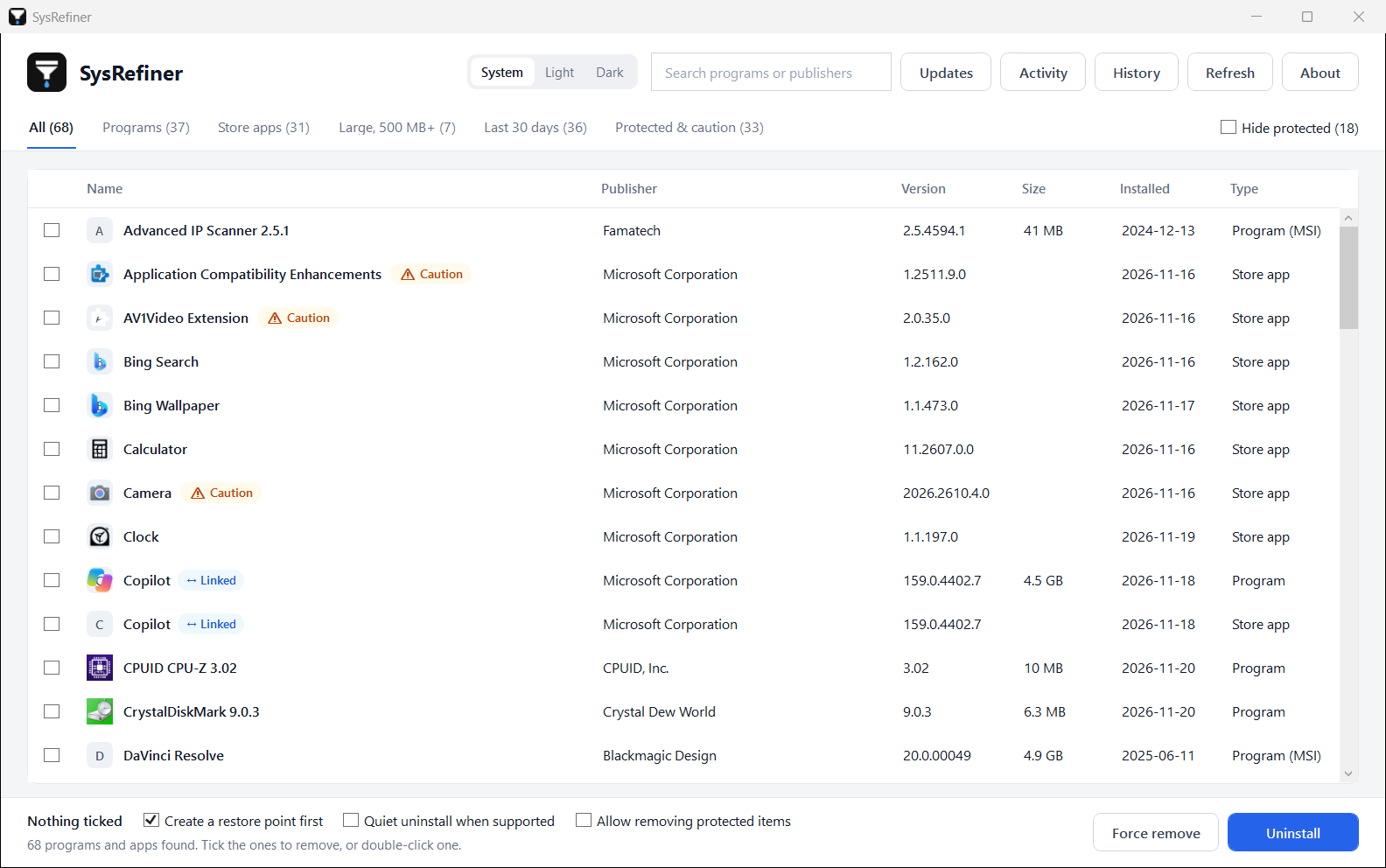
SysRefiner main list in the dark theme, with Caution and Linked tags on Copilot SysRefiner main list in the light theme, with Caution and Linked tags on Copilot
The same main list in the dark theme. A real scan, filtered to common apps. Main list, light theme: Caution and Linked tags (Copilot). A real scan, filtered to common apps.

Free todayEverything in version 1.0.0. No ads, no tracking.

Plain-language warningsProtected items stay blocked. Caution asks first.

See exactly what it didActivity log and History for every run.

Windows 10 or 11, 64-bitTested so far on Windows 11 Pro (x64) only.

In the app

Version 1.0.0, with window frames. The app list is the test PC’s real scan, filtered to common apps, and user paths show as C:\Users\You. The main list follows this site’s light or dark theme. The other screens have one theme.

SysRefiner main list in the dark theme, with Caution and Linked tags on Copilot SysRefiner main list in the light theme, with Caution and Linked tags on Copilot
Main list, with Caution and Linked tags (Copilot). Light and dark follow the site theme. A real scan, filtered to common apps.
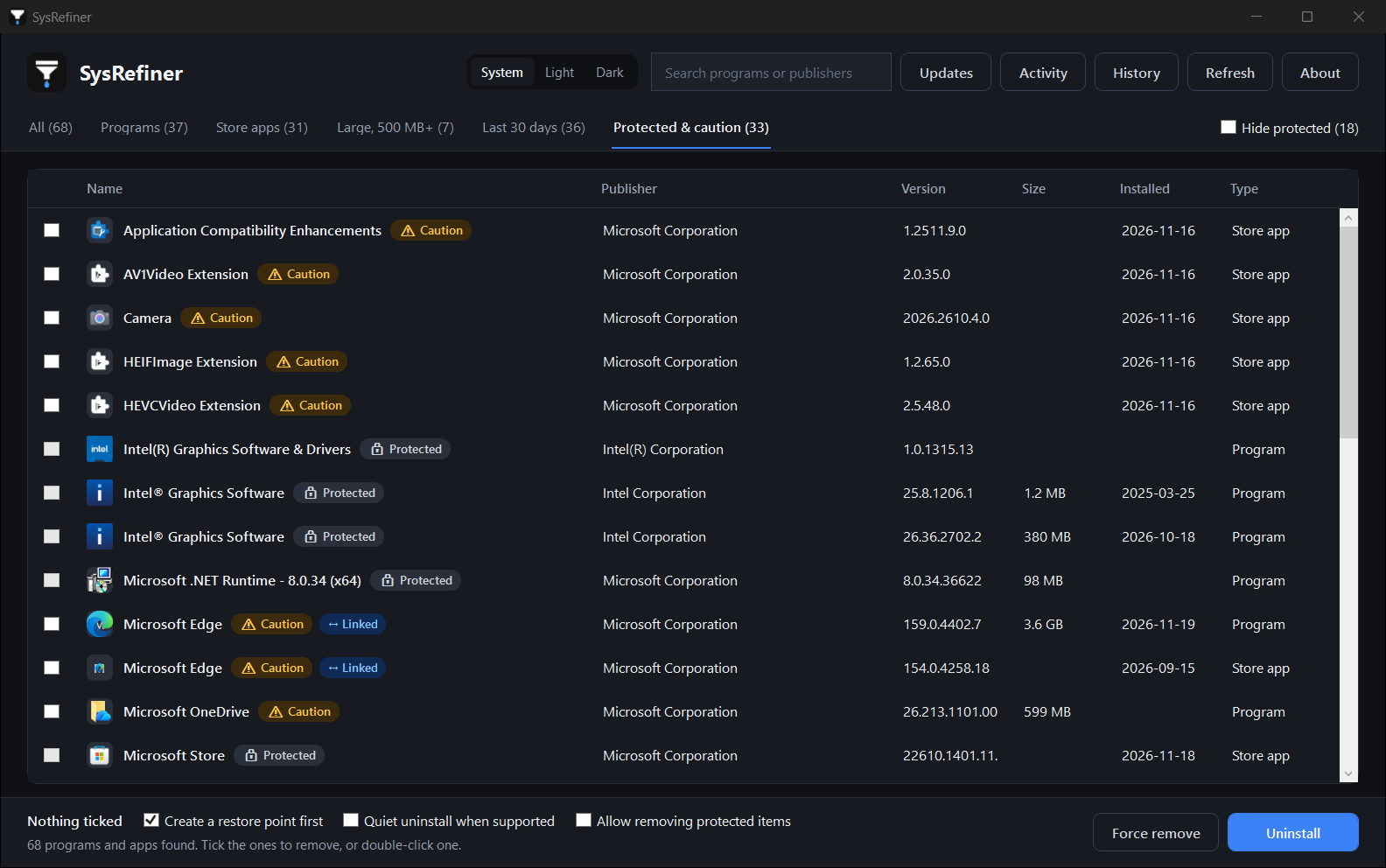
Protected and caution tab in SysRefiner, with Protected and Caution tags and linked Edge entries
The Protected & caution tab: Protected and Caution tags, and linked Edge entries. A real scan, filtered to common apps.
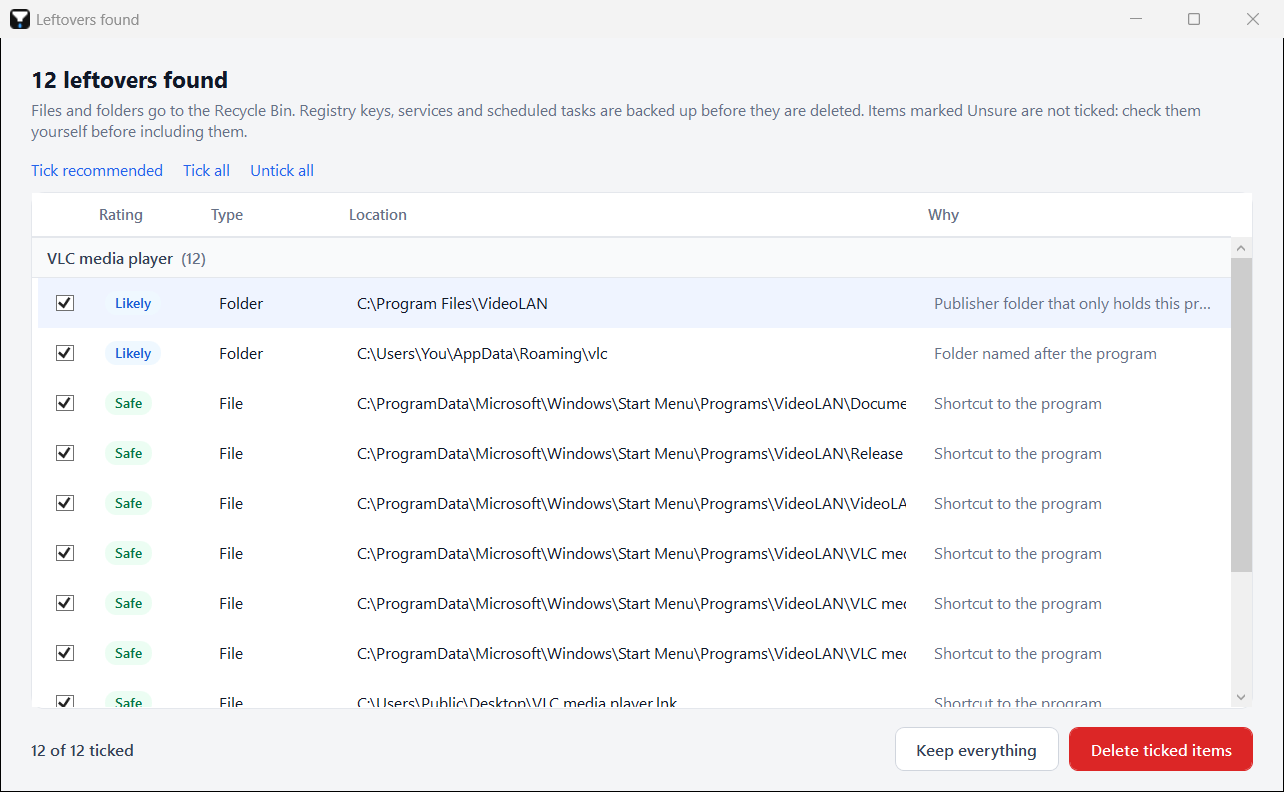
Leftovers found after uninstalling VLC, with Safe and Likely ratings and reasons
Leftovers found after uninstalling VLC: Safe and Likely ratings, with the reason for each. A real read-only scan of VLC; nothing was deleted.
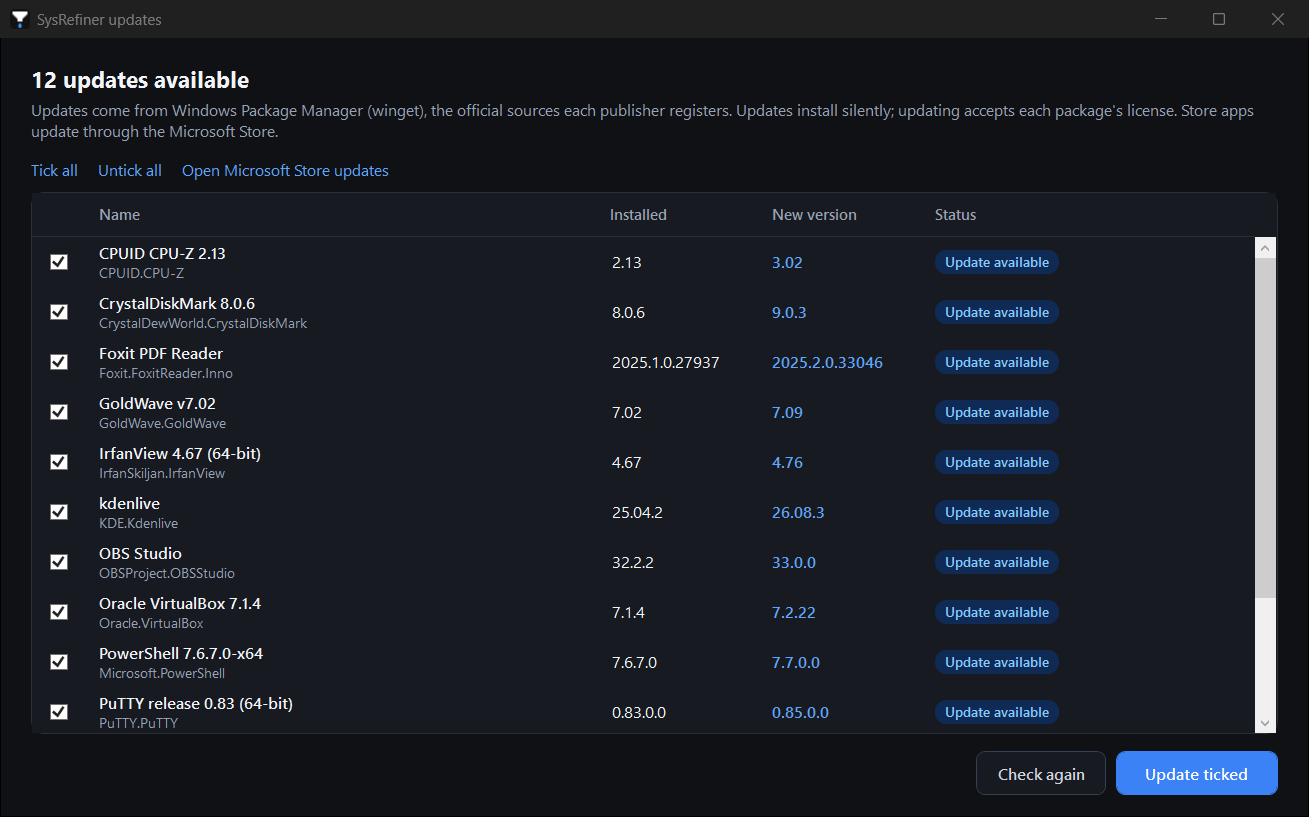
SysRefiner updates window showing 12 available updates
Updates window with 12 available updates. The real list winget reported on the test PC on 19 Nov 2026 (since installed).
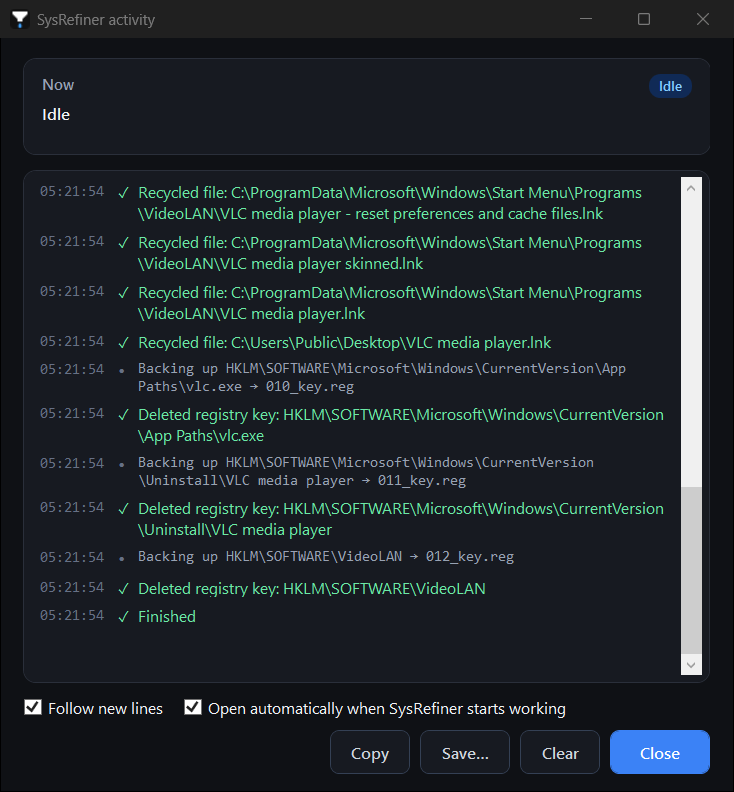
SysRefiner Activity log at the end of a demo run
Live Activity log at the end of a run. A demo run of VLC built from the real scan above; no real uninstall.
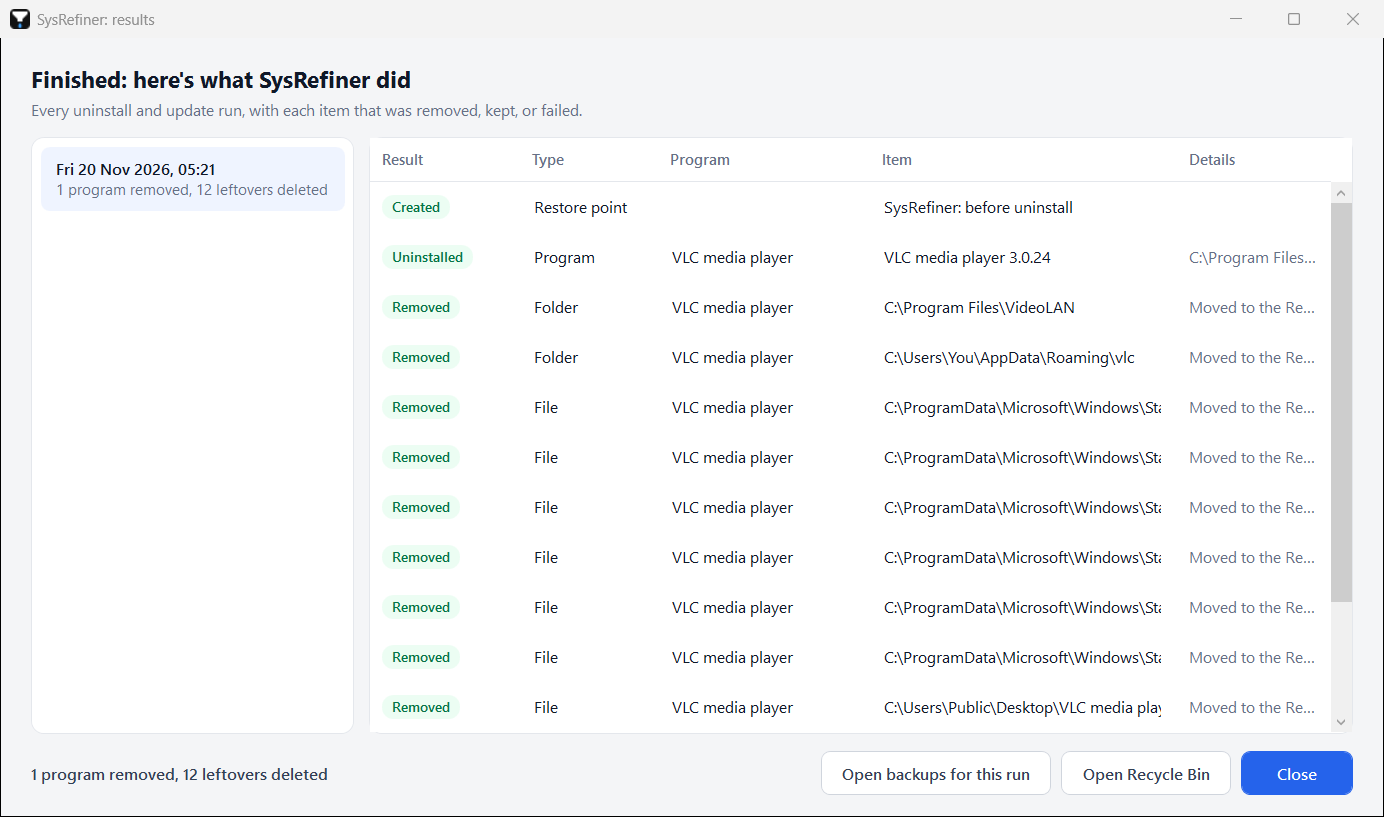
SysRefiner History showing the results of the demo run
History for that same demo run.
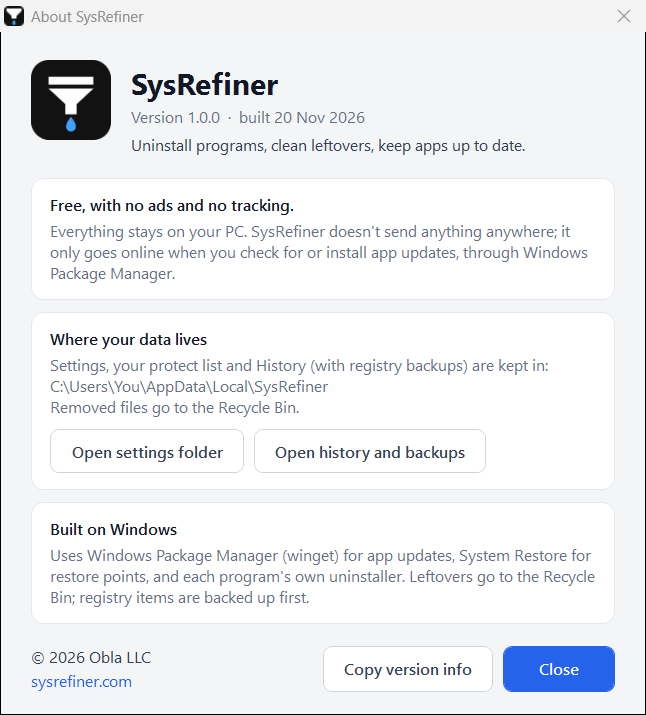
SysRefiner About box with version 1.0.0, the free promise, data folders, and the copyright line
About: version, the free promise, data folders, and © 2026 Obla LLC. The data folder is shown with its planned final name.

What version 1.0.0 does

Everything below is in the app today, and it is free. It sends nothing anywhere. It goes online only when checking for or installing app updates, through Windows Package Manager.

01

Uninstalling

  • Lists desktop programs (64-bit, 32-bit, and per-user installs) and Microsoft Store apps, with icon, publisher, version, size, and install date.
  • Search by name or publisher. Tabs: All, Programs, Store apps, Large (500 MB+), Last 30 days, Protected & caution.
  • Batch uninstall: tick several apps and remove them together. Double-click, or press Delete, to remove one.
  • Runs each program’s own uninstaller, including Windows Installer packages via msiexec, and waits for uninstallers that hand off to a helper copy of themselves.
  • Quiet uninstall uses the program’s silent mode where it offers one.
  • Force remove, when the uninstaller is missing or broken, removes that program’s files and registry entries directly.
  • Linked apps: a small Store launcher plus the real desktop program (for example Copilot, Microsoft Edge, OneDrive Photos) can be removed together, so neither is left broken.
02

Leftover cleanup, after every uninstall

It scans for what the program left behind:

  • Folders in Program Files, ProgramData, AppData (Roaming, Local, LocalLow, Local\Programs), and Documents.
  • Start menu and desktop shortcuts.
  • Registry keys under HKCU\SOFTWARE and HKLM\SOFTWARE (including 32-bit), registered program paths, and start-with-Windows entries.
  • Windows services and scheduled tasks that run from the program’s folder.
  • Store app data folders.

Each leftover is rated Safe, Likely, or Unsure, with the reason shown. Unsure items are never ticked by default. It never touches Windows folders, user-profile roots, Program Files roots, or anything another installed program still uses. A program still running from a folder is closed before that folder is removed, and that shows in the Activity log.

03

Safety: Protected and Caution

  • Protected items can’t be ticked. That covers core Windows parts, drivers, and shared runtimes.
  • Caution items can be removed, after a plain-language warning: what stops working, and how to get it back.
  • The uninstall confirmation lists every warning. When warnings are present, No is the default button.
  • Your own protect list: right-click an app and choose “Protect this app (never remove it)”. It survives app updates.
  • “Allow removing protected items” is for experts. It is off by default and asks for confirmation when turned on.
  • “Hide protected” keeps the list uncluttered.
04

App updates

  • Checks every app known to Windows Package Manager (winget). A badge on the Updates button shows the count.
  • Tick and update in one go. Updates install silently, one after another, with live status per app.
  • When an installer didn’t record a version, SysRefiner reads the version from the program file, so it does not offer the same update forever.
  • When an update can’t be installed in place (a different installer type), it explains why and offers an uninstall-then-install, asking first.
  • Store apps: one click opens the Microsoft Store update page. They update through the Store.
05

Activity and History

  • The Activity window is a live, timestamped log of what SysRefiner is doing: commands run, processes waited for, items backed up and deleted, and update output. It opens when work starts (that can be turned off). Copy or save the log.
  • History keeps every uninstall and update run, item by item (uninstalled, removed, kept, updated, or failed, with reasons), plus that run’s backups and activity log.
  • The app also has a System, Light, or Dark theme, remembered, including dark title bars, and an About box with the version, data locations, and the copyright line.

What it can remove, and what it protects

Removal always waits for your confirmation. Parts Windows marks as non-removable (Start, Settings, the shell, system frameworks) are not shown at all.

Can remove

  • Any desktop program that appears in Windows’ installed-programs list.
  • Store apps, including built-in Microsoft apps: the Xbox app, Xbox Identity Provider, Gaming Services, Game Bar, Clipchamp, Microsoft News, Bing Search, Bing Wallpaper, Maps, Feedback Hub, Get Help, Camera, Phone Link, Media Player, Notepad, Snipping Tool, Terminal, Widgets (Web Experience Pack), Copilot, Edge’s Store entry, and the photo/video format extensions.
  • Store apps are removed for the current Windows user. Other user accounts keep them. Windows may put some built-in apps back for new accounts, or after a major Windows update.

Protected, blocked by default

These can’t be ticked unless you turn on “Allow removing protected items”, which asks first:

  • Microsoft Store, App Installer (winget), Windows Security, Store Purchase App.
  • Windows App Runtime, UI.Xaml, VCLibs, and .NET Native frameworks.
  • Winget’s package source, Windows display language packs, Edge WebView2 Runtime, Visual C++ Redistributables, .NET runtimes, Microsoft Update Health Tools.
  • Hardware driver software from Intel, NVIDIA, AMD, Realtek, Qualcomm, MediaTek, Synaptics, ELAN, Broadcom, Dolby, Waves, Conexant, and Cirrus (graphics, audio, Wi-Fi, Bluetooth, chipset, touchpad, and similar).

Caution: removable, with a warning

Xbox app, Xbox Identity Provider, Gaming Services, Game Bar and Xbox in-game overlays; Photos; Camera; Phone Link; Snipping Tool; Notepad; Windows Terminal; Widgets; Microsoft Edge (Store and desktop); photo/video format extensions; handwriting recognition; Application Compatibility Enhancements; OneDrive; antivirus products (Bitdefender, Norton, McAfee, Kaspersky, ESET, Avast, AVG, Malwarebytes, Sophos, Trend Micro, Webroot, Avira, Panda, F-Secure); Steam; Epic Games Launcher; VirtualBox / VMware; Windows Subsystem for Linux; Docker Desktop.

Examples of the warnings, as shown in the app:

Xbox Identity Provider: “Lets games sign in with your Microsoft account. Game Pass games, Minecraft, Forza and other Xbox-connected games may fail to sign in or save to the cloud.”

Steam: “Steam’s uninstaller also deletes the games installed in its library folder, including saves that aren’t in Steam Cloud.”

OneDrive: “Your files stay in the OneDrive folder on this PC, but stop syncing with the cloud.”

Restore point and backups

What it does

  • A system restore point before uninstalling. The option is on by default. Windows itself allows at most one per 24 hours, and System Restore has to be turned on. If Windows doesn’t create one, SysRefiner says why and asks whether to continue.
  • Files and folders go to the Recycle Bin, so they can be restored from there. An item too large for the Recycle Bin is deleted permanently. That is Windows’ own behaviour.
  • Registry keys, values, and services are backed up as .reg files in that run’s History folder before deletion. Double-click a file to restore it.
  • Scheduled tasks are backed up as XML before deletion. Re-import them in Task Scheduler.
  • History keeps a per-run record, with an “Open backups for this run” button.

What does not exist

  • Uninstalling does not put the program back. Reinstall it from its maker, the Microsoft Store, or winget.
  • No install monitoring and no snapshots. It cannot record an installation and later reverse that installation exactly.
  • No restore of a whole cleanup run in one step. Leftovers are restored item by item, from the Recycle Bin and the .reg files.
  • No rollback of an app update to the previous version.
  • No registry cleaning or optimising, no PC speed-up claims, and no system tweaks. SysRefiner only removes what belongs to apps you choose to remove.

System requirements

Windows Windows 10 or Windows 11, 64-bit (x64). Tested so far on Windows 11 Pro (x64) only. ARM PCs are not tested. It is not a build for every Windows version.
.NET .NET Framework 4.8, which is built into Windows 11 and into Windows 10 version 1903 and later.
Rights Administrator. It asks with the normal Windows prompt.
Updates Windows Package Manager (App Installer), built into Windows 11 and recent Windows 10.
Restore points System Restore turned on.
Disk About 245 KB for the program. History backups are small text files.
Internet Only for checking and installing app updates.

Pricing

Version 1.0.0 is free. There is no Pro version, no licence key, no payment, and no trial today. Pro is planned and not built. It is not for sale.

Available

Free

US$0Version 1.0.0

  • Everything that exists today: uninstall, leftover cleanup, safety, updates, and history
  • Free, with no ads and no tracking
  • The About box states that promise, and it stays true
View download
Coming soon

Pro yearly

US$5per year, when it is for sale

One license covers up to 3 PCs. Not for sale yet. No trial.

Coming soon

Pro lifetime

US$10once, when it is for sale

One license covers up to 3 PCs. Not for sale yet. No trial.

Planned Pro features — not in the app yet

These are not part of version 1.0.0. Checkout stays closed until they exist. The plan is to show them in the app, locked, with a Pro badge, and never to add ads, nag screens, or tracking to the free version.

  • Install monitor: record an installation and later reverse it exactly (true undo).
  • Scheduled automatic updates with rules, for example “update everything except these apps”.
  • One-click restore of a whole cleanup run.
  • Export and import of settings and the protect list, for several PCs.
  • Priority support.

FAQ

Is SysRefiner free?

Version 1.0.0 is free. There is no Pro version, no licence key, and no payment. It has no ads, no tracking, and no telemetry. It sends nothing anywhere, and goes online only when checking for or installing app updates through Windows Package Manager.

Is there a trial?

No. Pro is not a trial of the current app, and Pro is not for sale yet. Nothing in the free app is time-limited.

What will Pro include, and what will it cost?

US$5 per year, or US$10 once. One license covers up to 3 PCs. The planned features are an install monitor (true undo), scheduled automatic updates with rules, one-click restore of a whole cleanup run, export and import of settings and the protect list, and priority support. None of that is built yet.

Can I buy Pro now?

No. The buy buttons stay on “Coming soon” until a checkout URL is set. Payment is planned through a merchant of record, Paddle or Lemon Squeezy, so this site would not take card details.

Where is the download?

There is no installer file yet. Code signing is in validation. The planned file name is SysRefiner-Setup-1.0.0-x64.exe. The Download button does not link a file. The current build is a portable SysRefiner.exe, about 245 KB, used for testing only.

Which versions of Windows?

Windows 10 or Windows 11, 64-bit (x64). It has been tested so far on Windows 11 Pro (x64) only. ARM PCs are not tested. It needs .NET Framework 4.8, which is built into Windows 11 and Windows 10 version 1903 and later, and it asks for administrator rights.

Does it create a restore point?

Yes, as an option that is on by default, before uninstalling. Windows allows at most one restore point per 24 hours, and System Restore has to be turned on. If Windows does not create one, SysRefiner says why and asks whether to continue.

Can I put an uninstalled program back?

Not from SysRefiner. Reinstall it from its maker, the Microsoft Store, or winget. Files and folders from the cleanup go to the Recycle Bin, unless an item is too large for the Recycle Bin, in which case Windows deletes it permanently. Registry keys, values, and services are backed up as .reg files first. Scheduled tasks are backed up as XML. There is no restore of a whole cleanup run in one step, and no rollback of an app update to the previous version.

Are Store apps removed for every account on the PC?

No. Store apps are removed for the current Windows user. Other accounts keep them, and Windows may put some built-in apps back for new accounts or after a major Windows update.

Who makes it?

Obla LLC. © 2026 Obla LLC.